Direct Deposit for reimbursements is mandatory for all Commonwealth employees AND Direct Deposit for reimbursements are SEPARATE and DISTINCT from PAYROLL Direct Deposit. (For Student Direct Deposit, see Student Direct Deposit instructions.) Reimbursements for employees will not process in Chrome River unless direct deposit information for REIMBURSEMENTS (separate from Payroll) is entered in Banner. IF you see banking information populated, you are enrolled in Direct Deposit for reimbursements; HOWEVER, please check the information to ensure it’s current banking information.
Follow the instructions below to enroll and manage your Direct Deposit information for reimbursements.
Employees are responsible for updating Direct Deposit information when any bank information changes, including but not limited to:
- A change in bank
- Bank merge
- Inactivating or changing accounts
To Securely Enroll and Manage Your Direct Deposit Information:
1. Go to the UMW Technology Login Page
2. Select Banner Self Service (SSB) PROD.
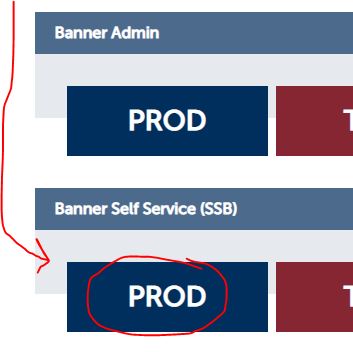
3. Sign in to Banner SSB using your NetID and Password.
Note: If a blank screen appears select the Compatibility View icon located in the address bar.

4. Select the Employee tab and select Enroll and Maintain Direct Deposit Information.
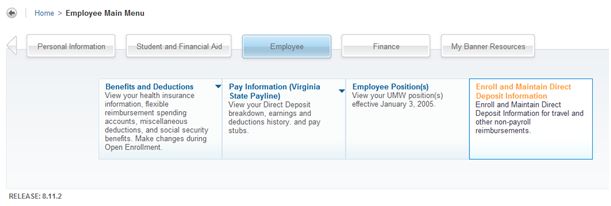
5. You will be directed to the Direct Deposit Allocation page.
Adding New Information
To add a new Accounts Payable Direct Deposit for the first time, select Add New.

Enter your Bank Routing Number, Account Number into the banking fields and select the Account Type (Checking/Savings).
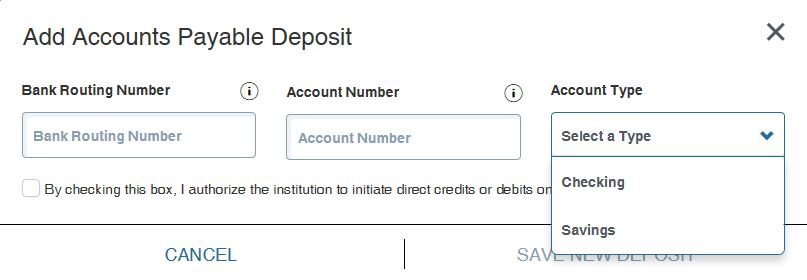
Select the checkbox authorizing UMW to initiate direct credits or debits on your behalf

Click Save New Deposit

Update Existing Information
Only one Accounts Payable direct deposit for a checking or savings account is allowed on this form. Before adding a new direct deposit record, select and delete the existing record. NOTE: IF you see banking information populated, you are enrolled in Direct Deposit for reimbursements; HOWEVER, please check the information to ensure it’s current banking information and follow instructions below if account information needs to be updated.
If you are already enrolled in Direct Deposit, to enter new banking information, you must first delete your old Direct Deposit information and then add new information.
To delete existing banking information:
Select the checkbox to the left of the Bank Name.
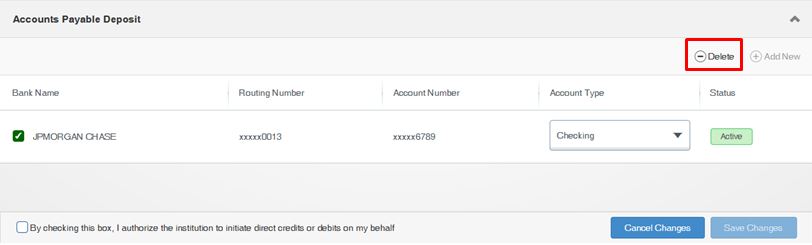
Click Delete to delete banking information
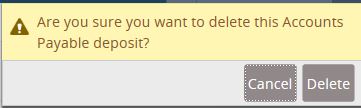
An alert will appear, asking if you are sure you want to delete. Click Delete.
NOTE: When updating bank routing and account numbers, you should see the correct bank name populate automatically. If the name appears incorrectly, please contact payables@umw.edu.
When Direct Deposit information is added or updated, you will receive an email from payables@umw.edu confirming these changes.
Contact payables@umw.edu or 540-654-1225 for questions related to the direct deposit process for reimbursements.